

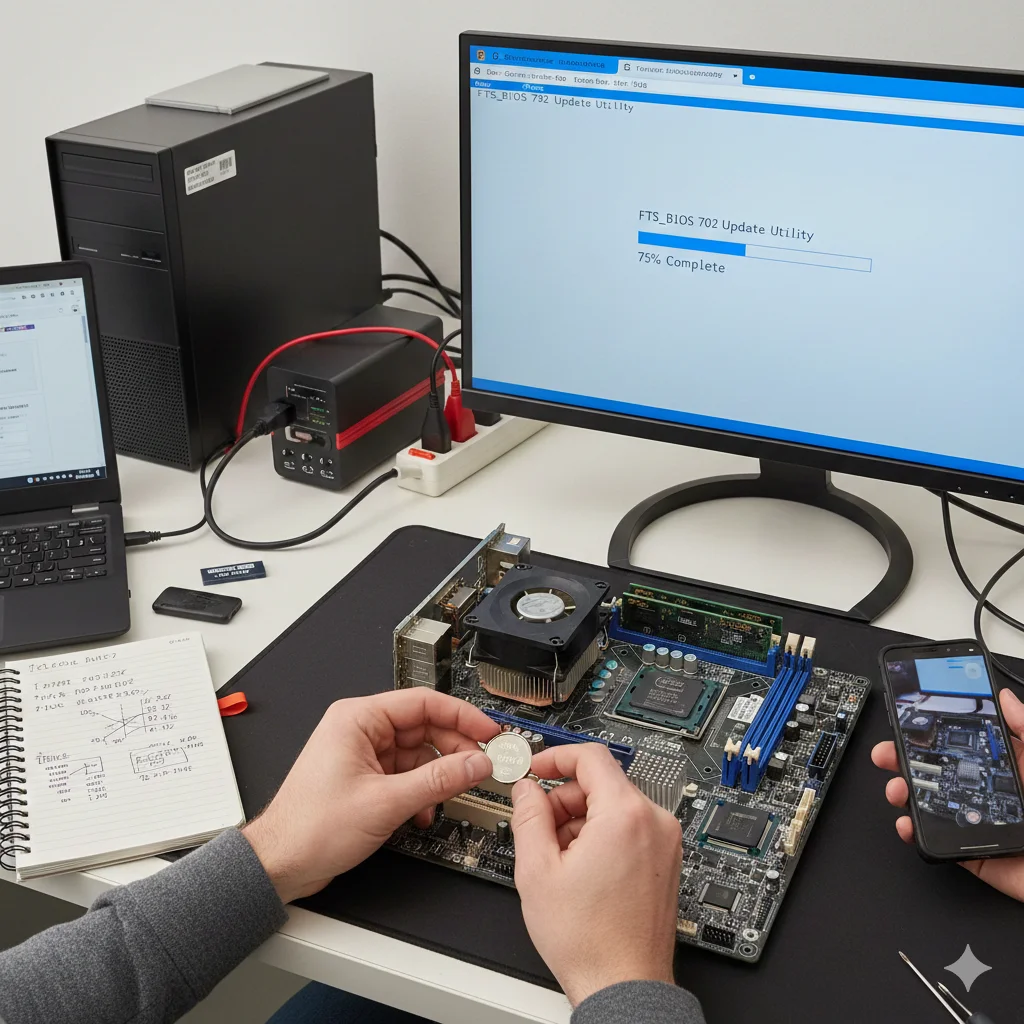
FTS_BIOS 702 Update Download – The first part of your computer that interacts with the operating system is the Basic Input/Output System (BIOS). When the firmware becomes outdated, it can create compatibility issues with newer processors or lead to system instability. For users with certain Fujitsu mainboards, the FTS_BIOS 702 update is important to remedy these issues.
This update is most important for users operating systems that include York field microarchitecture, like the Intel Core 2 Quad Q9650. This release does more than update the version number of the firmware. It also includes updated microcode so that your CPU functions optimally with your motherboard.
It is crucial to understand that flashing a BIOS is a more complicated process than simply updating an application. If mistakes are made, the consequences can be dire and result in an unbootable computer. This guide outlines the process of locating the FTS_BIOS 702 update, preparing your system, and installing it, step by step.
Official Download Source
A BIOS update should only be downloaded from the manufacturer. Third-party driver sites may offer updates that include the title “FTS_BIOS 702“, but those files are often unverified and can be corrupted. Downloading from these sites can lead to bricking your device.
Fujitsu Technology Solutions (FTS) has a centralized support portal to manage these downloads. Because BIOS versions are tied to specific hardware IDs, downloads cannot be generic. They require a specific file to be matched to a device’s serial number.
Ways to find the official files:
- Go to the Fujitsu support page.
- Locate the search tool.
- Type the device’s serial or ident number. This number is typically on a sticker on the back or bottom of the device.
- After product identification, choose the Operating System.
- On the downloads page, expand “BIOS” or “Firmware.”
- Find the version from the late 2007 or 2008 (which is from the Yorkfield processor era) or the one specifically labeled version 702.
Prerequisites You Need Before the BIOS Update
Update processes carry a lot of risks, as they can often fail, and require a lot of necessary preparation in particular. This goes especially for power losses, as they are even more disastrous mid-update.
- Stable Power: For laptops, the battery should be fully charged, and the device has to be connected to a working AC outlet. For desktops, it’s better to be connected to a Uninterruptible Power Supply (UPS).
- System Identification: Ensure that your motherboard model matches the update. Typical FTS boards needing this update are the G31T-M2, G31T-M5, and G31T-LM. To determine your Mainboard model and BIOS version, you may use the tool CPU-Z.
- Data Backup: Even though a BIOS update should not affect the contents of your hard drive, things can go wrong. Make a backup copy of important data on an external drive or in the cloud.
- BIOS Settings Record: The update can reset your BIOS settings back to defaults, including any custom changes you may have made. Access each of the BIOS menus, and take note of all special settings such as the boot sequence and configurations for the SATA controller.
Step-by-Step Installation
Usually, Fujitsu offers two ways of updating the BIOS: a Windows-based tool (usually named DeskFlash) and a DOS-based update via bootable media. The second option is generally safer: it eliminates the risk of software conflicts by removing the layer of the operating system.
Method 1: The DOS-Based Update (Preferred)
- Create Bootable Media: Use a tool like Rufus to format a USB drive as a bootable DOS disk.
- Transfer Files: Once you have unzipped the FTS_BIOS 702 ZIP file, move the BIOS image and the flash utility file (which can be an .exe file or a .bat file that you downloaded) onto the USB drive.
- Boot to DOS: Initiate a restart and tap the reset menu button (F12/F11) to choose the USB drive.
- Run the Flash: When the command prompt opens, input the name of the flash file (e.g., flash.bat) and hit the Enter key.
- Process: The utility will take time to remove the previous BIOS and replace it with the updated one. Do not interfere with the system.
- Reboot: The computer will restart itself once the process is done. Select “Done” and take out the USB drive.
Method 2: Windows Utility
If the downloadable zip file contains a Windows executable:
- Close All Applications: Stop all background processes, including your antivirus, and shut your browser.
- Run as Administrator: Use the right click on the update tool to select the option “Run as Administrator”.
- Follow Prompts: The wizard will not allow any interaction with the system. It may temporarily hang the system.
- Automatic Restart: The installation will conclude with the system restarting on its own.
Resolving Common Issues
Despite all the qualifications and preparations, problems will happen. Here are the fixes to the most common problems concerning the version 702 update.
Errors with IEEE 1394 (FireWire)
One of the issues that arise with the FTS_BIOS 702 update is that the IEEE 1394 FireWire controller shows an error that can be seen in Device Manager after doing an update. This is most commonly associated with conflicts of resources or the BIOS changing how it recognizes the various pieces of hardware.
- Fix: Go to Device Manager and uninstall “OHCI Compliant IEEE 1394 Host Controller.” After, restart Windows, and let it reinstall the driver. Alternatively, you can go to the BIOS setup and reset the Configuration Data (NVRAM).
Computer Hangs on Boot
If the computer is able to power on but it hangs at the Fujitsu logo:
- Fix: You will want to perform a CMOS clear. Begin by turning your PC off and unplugging it. Then, locate the CMOS battery on the motherboard (it looks like a silver coin). Remove the battery for 5 minutes, and then put it back in and reboot your computer. This will force the BIOS to go back to its default settings.
Error: “Invalid BIOS image”
This error shows up when the file of the update you downloaded does not match the motherboard that you are using.
- Fix: Go to the Fujitsu portal and double-check the revision number of your motherboard (for example, is it v1.0 or v2.0) and then download the file that matches.
What Needs to Be Done After the Update
Why should you go through the hassle? Updates such as the FTS_BIOS 702 bring important updates for the longevity of the hardware that need to be done.
- Yorkfield CPU Support: This update adds microcode support for 45nm Intel Core 2 Quad processors. Without this update, you will be unable to upgrade to these CPUs as it will cause the system to fail to post.
- System Stability: The update resolves various memory addressing issues that would cause random system freezes in previous versions of the firmware.
- Hardware Compatibility: This update fixes the inability to detect some PCIe peripherals and issues with some newer USB devices.
Conclusion
Regularly updating the system firmware is just as important as maintaining the physical components of your system. For FTS_BIOS 702, maintaining the quad-core processor support is important for users who are trying to extend the life of their Fujitsu systems.
Downloading new updates only from the official Fujitsu support page and having a power backup during the update are good safety practices. If you don’t feel confident about the process, it is usually a good idea to contact a technician rather than take the risk of having a failed flash.