

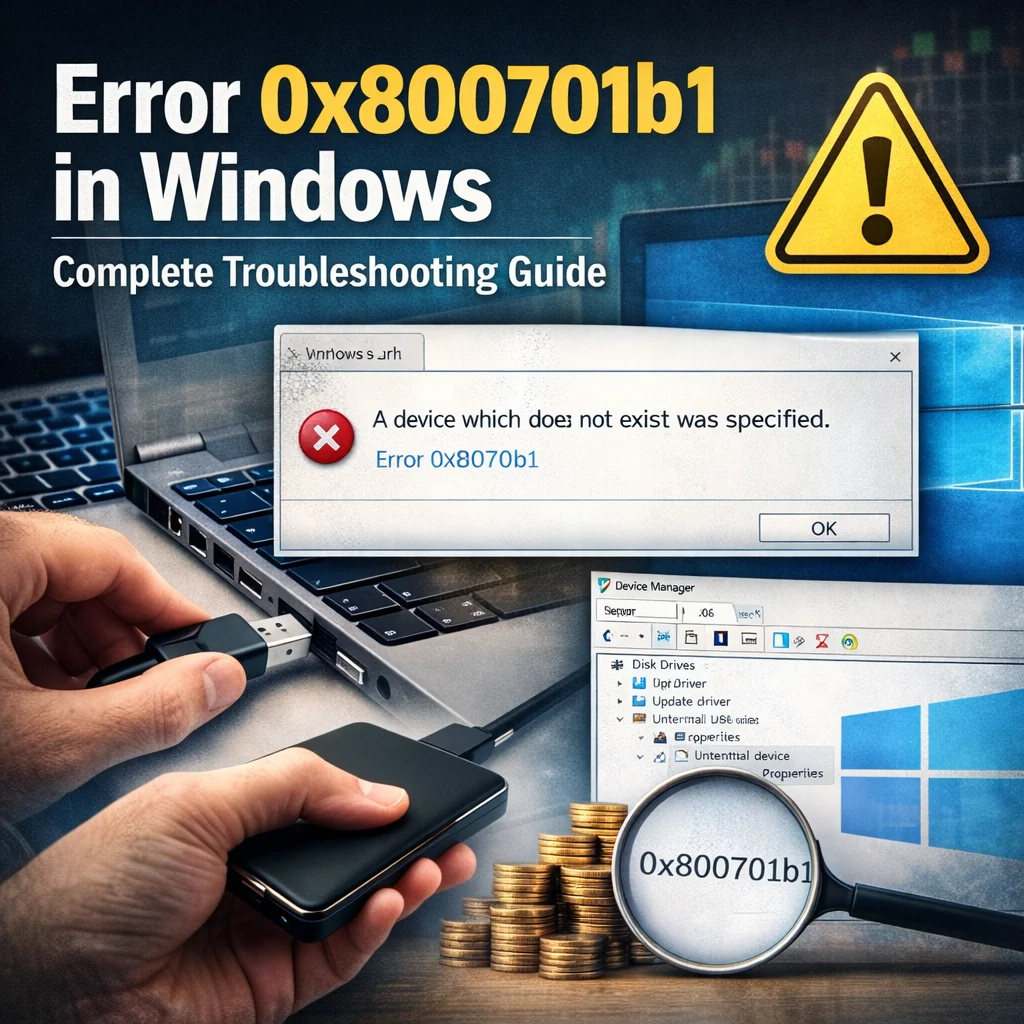
While transferring files or connecting your external storage devices, many Windows users face device errors. Error 0x800701b1 is one of the most common issues, which typically shows up with the error “A device that does not exist was specified.” This error mainly appears when transferring files to an external hard drive, USB flash drive, or SSD.
The message might be bewildering, but the problem is typically with hardware connection issues, outdated drivers or system configuration issues. In this guide, we will talk about what is Error 0x800701b1, why does it happen and how to fix it in the best possible way on Windows.
What Is Error 0x800701b1?
The Windows system error 0x800701b1, usually occurs when the OS is unable to access a storage device properly. This might occur when Windows tries to read or write data but does not properly communicate with the connected drive.
The error commonly appears during:
- File transfer between drives
- Transferring large files to external drives
- Best Uses of USB Flash Drive or External SSD
- Accessing removable storage devices
Most of the time Windows displays a message saying that it cannot find or access the device when this word error appears, and stops the file transfer here.
Common Causes of Error 0x800701b1
There are quite a few reasons this might happen. Or understanding root cause, which leads to the best solution!
1. Faulty USB Port or Cable
USB connection damaged or unstable is one of the major reasons behind having this error. If you have a faulty USB port or cable, Windows may not be able to communicate with the device.
2. Outdated or Corrupted Drivers
Storage drivers are what Windows uses to talk to the hardware you have attached. If the drivers are outdated or corrupt, it can cause improperly detecting the device.
3. Insufficient Power Supply
Some external hard drives and SSDs draw more power than some ports can deliver. Error 0x800701b1 may be caused when the device is underpowered.
4. File System Errors
A corrupted drive file system can stop Windows from reading or writing data properly.
5. Hardware Issues with the Drive
In certain instances, the issue could stem from the storage device itself. Repeated connection errors can come from a failing hard drive or SSD.
How to Resolve Windows Error 0x800701b1
Here are some tried and tested techniques to troubleshoot and fix this issue.
1. Try a Different USB Port
The easiest fix for this problem is unplugging your device and plugging it back into a different USB port.
Steps:
- Safely eject the external drive.
- Disconnect the USB cable.
- Try connecting the device to a different USB port on your computer.
Connecting through a USB port directly on the motherboard (typically located in the back of a desktop PC) is generally more stable.
2. Use Another USB Cable
Another reason could be that the cable itself is somehow damaged or not able to transfer data properly. You could try connecting the drive with another USB cable, if possible.
3. Update Storage Drivers
Drivers are responsible for the compatibility between Windows and external devices, and so updating them can sort out this issue.
Steps:
- Right-click the Start menu.
- Open Device Manager.
- Expand Disk Drives and Universal Serial Bus controllers.
- The first step is to right-click on the device and select Update driver.
- Select Search automatically for drivers.
The most common approach is restarting your computer after updating, then testing the device again.
4. Use Windows Disk Check Tool
This tool automatically scans drives for errors, and it comes built into Windows.
Steps:
- Open File Explorer.
- Right-click the affected drive.
- Select Properties.
- Go to the Tools tab.
- Click Check under Error Checking.
This process will check your drive for errors and fix the file system issues.
5. Reinstall the Device Driver
Reinstall drivers if the existing ones are corrupted
Steps:
- Open Device Manager.
- Under Disk Drives, find the external drive.
- Right-click on it and choose Uninstall device.
- Restart your computer.
Then, you can reboot Windows to automatically reinstall the correct driver.
6. Connect the Drive Directly
If you’re using a USB hub or adapter, connect the drive directly to the computer. Power hiccups happen sometimes, or a communication drops.
7. Check for Windows Updates
Microsoft has regular updates that resolve compatibility issues.
Steps:
- Open Settings.
- Go to Windows Update.
- Click Check for updates.
- Install any available updates.
Preventing Error 0x800701b1
Here are some best practices to minimize the likelihood of running into this issue again:
- Use high-quality USB cables
- Eject External Drives Before Unplugging
- Keep Windows and drivers updated
- Avoid using unreliable USB hubs
- Periodically check drives for file system issues
Many similar mistakes can be avoided by having healthy storage devices and stable connections.
Final Thoughts
Error 0x800701b1 can stop file transfers in their track and make the flow of work painful, especially while working on external storage devices. Lucky for you, most problems are usually found in connection issues, outdated drivers and minor system errors.
Using the troubleshooting procedures set out in this guide (including switching USB ports, updating drivers, performing disk checks and reinstalling driver deviceazines) most users can quickly rectify the problem.
If these fixes don’t work and this error continues, the storage device itself might be on its way out. In that case, the safest option may be to back up your important data and replace the drive.
By maintaining your Windows system regularly with troubleshooting, you can keep it healthy and free of such problems including Error 0x800701b1.